Use case 01 / 04

Create & edit screens

Describe a product and get its screens as real HTML, not a mockup. Open any one full-screen, point at an element, and tell the agent what to change.

· Live HTML· Mobile + desktop preview· Version history· HTML, PDF or ZIP out· Into v0 or Claude Code

CanvasFernway — Find your next loopSaved

Screen chat Saved across sessions

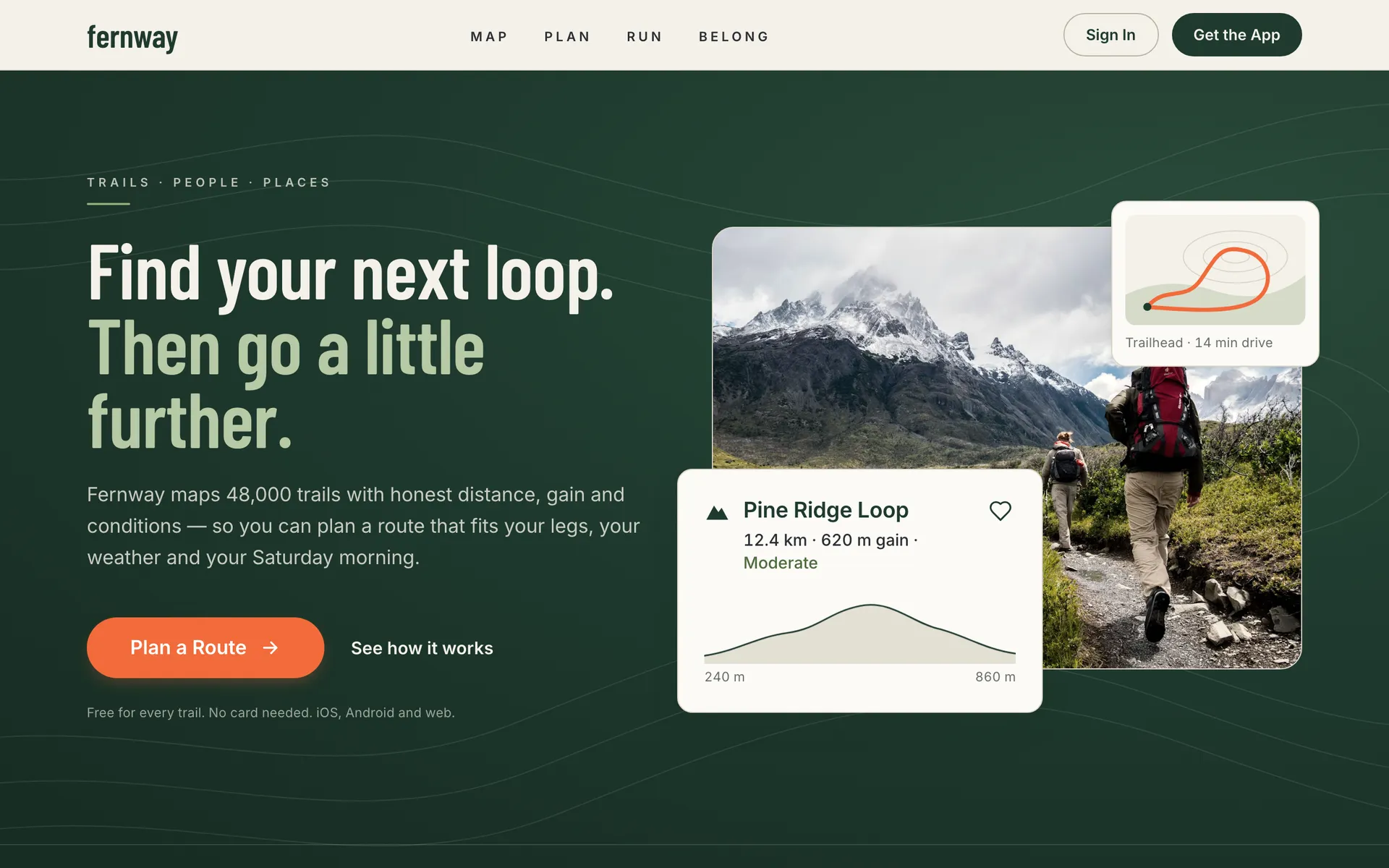
  1. <section> relative overflow-hiddenTake the hero to dusk on the trail: deep forest-green background, cream headline, the photo and route cards unchanged, and keep the orange Plan a Route button as the one warm accent.
  2. Editing the page…6 edits applied · Recolour the hero to a dusk forest-green with cream type, keeping the orange CTA as the only warm accent.
  3. I've moved the hero to dusk. It now has a deep forest-green background with a soft glow, faint cream contour lines, a cream headline and stats, and a pale sage second line so it stays readable. The orange rule under the eyebrow text is now sage, so the orange Plan a Route button is the only warm accent. The photo and both route cards are unchanged.
<section> relative overflow-hidden

Describe a change…

Claude Opus 5.5
/
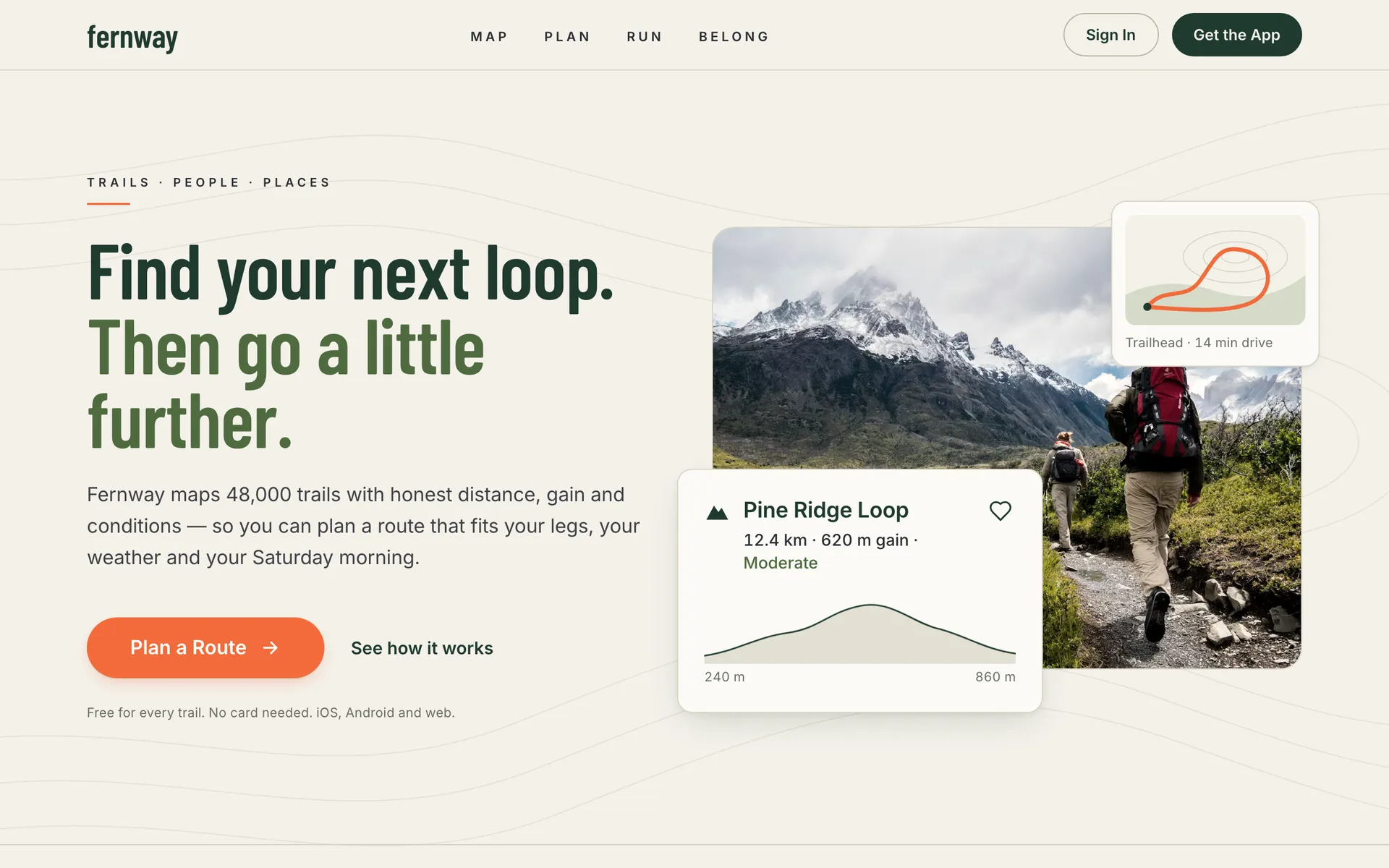
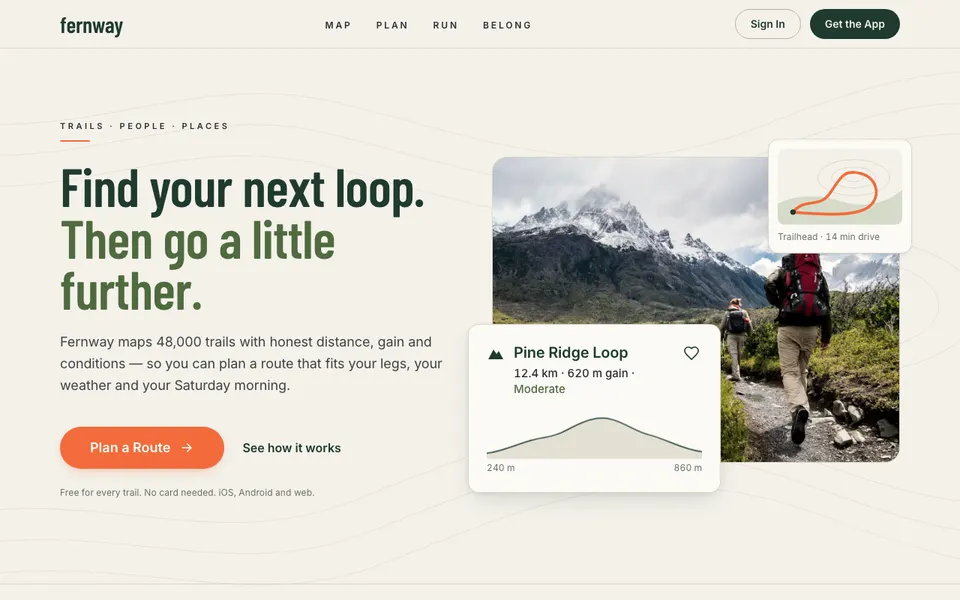
Fernway landing screen as generated: a light sand hero with a dark green headline, a mountain trail photo and route cardsThe same Fernway landing screen after one edit: a deep forest-green hero with a cream headline, the same photo and route cards, and the orange Plan a Route buttonPDF downloadedfernway-find-your-next-loop.pdf

A real turn on the Fernway canvas · 6 edits · Claude Opus 5.5 · ask, reply and both versions unedited

How it runs

Three steps, one canvas.

  1. 01

    Brief in

    Paste a brief or drop in a brand reference. App Screens renders landing, pricing and dashboard side by side; Wireframe Flow maps a whole product first.

  2. 02

    Open it full-screen

    The screen editor puts the live page beside its source. Select an element in the preview and your next message points at exactly that element.

  3. 03

    Edit, then ship it

    Switch between mobile and desktop, step back through version history, then share a link or export HTML, PDF or a ZIP.

Ship it

HTML and PDF, straight from the editor.

Open a screen with Edit screen on its node, then press Export in the toolbar. Every option below is in that menu. Pick one to see what you get: the PDFs are shown with a real brand kit, six landscape pages from one Press Kit run.

Export

One file, the whole page

The screen as a single .html document, unsaved edits included. Open it in a browser, put it on any host, or give it to a developer or a coding agent.

fernway-find-your-next-loop.html

The same Fernway landing screen after one edit: a deep forest-green hero with a cream headline, the same photo and route cards, and the orange Plan a Route button
<section class="hero-dusk relative overflow-hidden bg-primary">
  <svg class="absolute inset-0 w-full h-full pointer-events-none" …>…</svg>
  <div class="relative max-w-content mx-auto px-5 md:px-10 …">
    <p class="t-eyebrow text-chalk/75 eyebrow-rule">Trails · People · Places</p>
    <h1 class="t-display text-chalk mt-6">Find your next loop.<br>
Take it anywhere

Into v0, Claude Code or your own repo.

A screen is real HTML, so it goes wherever code goes: as a file for v0, as a live canvas Claude Code can drive over MCP, or as a handoff ZIP with instructions for any coding agent.

v0

Hand v0 the file

  1. In the editor, Export → HTML file.
  2. Attach the file to a v0 chat.
  3. Ask for components. v0 has the real markup to work from, not a screenshot.
fernway-find-your-next-loop.html

Rebuild this screen as a Next.js page with shadcn/ui components. Keep the layout, colours and copy.

Or send a link instead

Share → Publish share link, then Copy prompt with link. You get this, ready to paste into Claude, ChatGPT or any assistant that reads links:

Use the "Fernway — Find your next loop" screen design published at https://vmotif.com/s/9d4e2b… as the visual reference. Recreate its layout, color palette, typography, spacing, and content structure faithfully.
Claude Code

Let Claude Code drive it

  1. Add Vmotif as an MCP server once, and sign in when it asks.
  2. Ask for a screen. It lands on your canvas, where you can open it in the screen editor.
  3. Ask Claude Code to build it. It reads the screen’s HTML back and writes it into your repo.
claude — ~/fernway-web
$

claude mcp add --transport http vmotif https://vmotif.com/api/mcp

>

Make a pricing screen for Fernway on my Vmotif canvas, then build it into this app.

vmotif - generate_code (MCP)(prompt: "Fernway pricing: three plans, same type and colours as the landing", screen_html: true)

⎿

{ id: "4c0e…", status: "pending", canvas: { url: "https://vmotif.com/app/w/…" } }

vmotif - get_generation (MCP)(id: "4c0e…")

⎿

{ status: "completed", projectAssociation: { url: "https://vmotif.com/app/w/…" } }

vmotif - read_canvas (MCP)(project_id: "…")

⎿

{ canvas: { nodes: [screen: Pricing, html], designContext } }

Pricing is on your canvas. I’ve built it as app/pricing/page.tsx with the landing page’s tokens.

Cursor, Codex and any other MCP client connect the same way. Setup for each client

Any repo

Or hand over the whole canvas

Export → ZIP with all assets packs every screen with its DESIGN.md, copy and images. Unzip it in your project and tell your coding agent to follow IMPLEMENTATION_PROMPT.md, which reads, in part:

You are receiving a Vmotif design handoff. Turn it into a production-ready, maintainable website in the current code editor or repository.Rebuild the experience with the repository's existing framework, conventions, components, and package manager.
  • README.mdStart here
  • IMPLEMENTATION_PROMPT.mdFor your coding agent
  • manifest.jsonEach file → its canvas node
  • screens/Self-contained HTML references
  • design/DESIGN.md and tokens
  • assets/Images and video
Made on the canvas

Real runs, unedited.

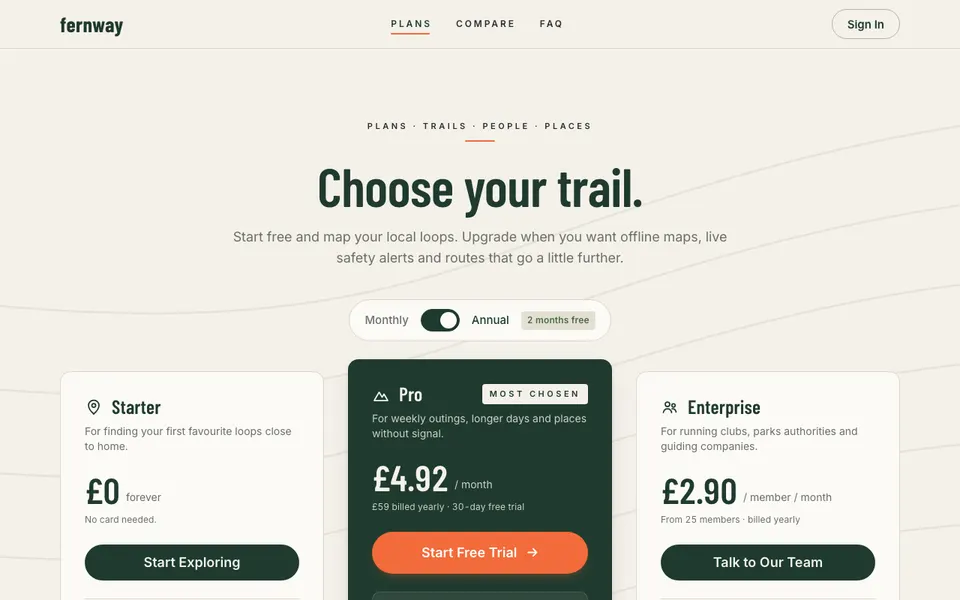
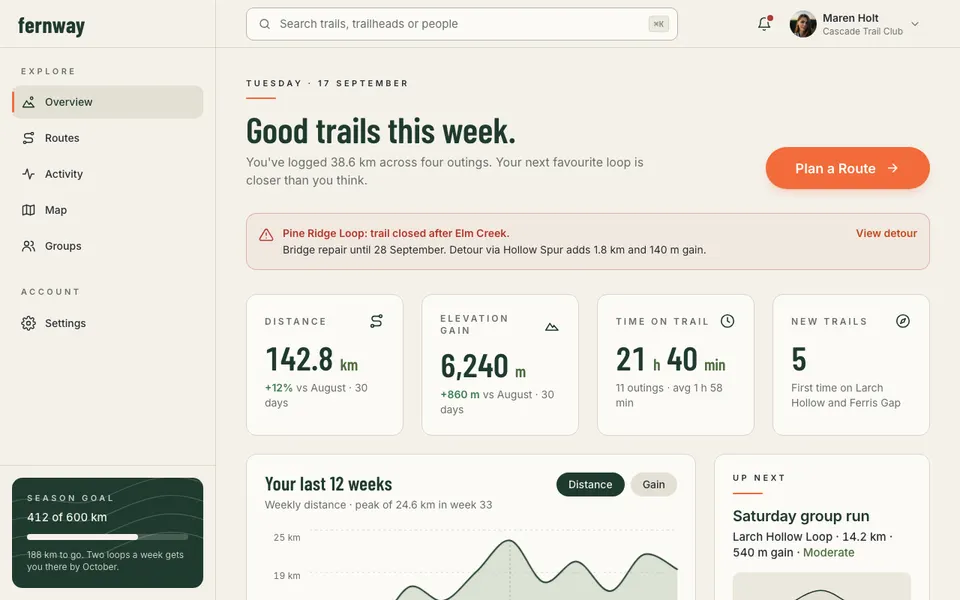
Landing, pricing and dashboard for Fernway, a fictional trail app, from one App Screens run, and the landing again after one turn in the editor. Each is a live HTML page.

Prebuilt workflows

Start from a workflow.

Each one is a real graph on the canvas. Open it, bring your own input, and change anything.

On the canvas

The tools it runs on.